This Guide generally suitable for the following provider/bank
ZiiPAY
Part I Settings in ZiiPOS
Please go to ZiiPOS to process.
- Click on the “toolbar button” in the lower left corner.

- Click on “Settings” in the toolbar.

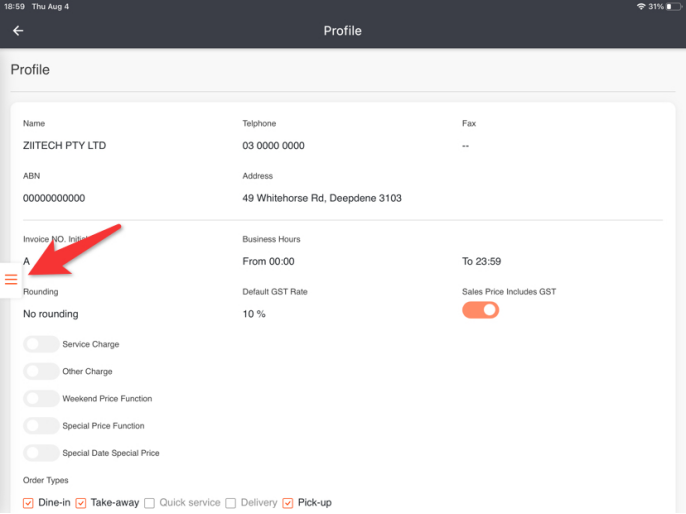
- Click on the button on the left.
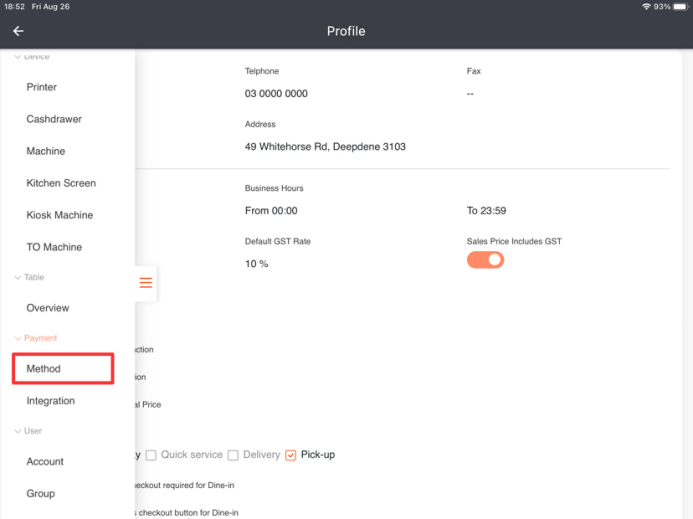
- Click on “Method”.
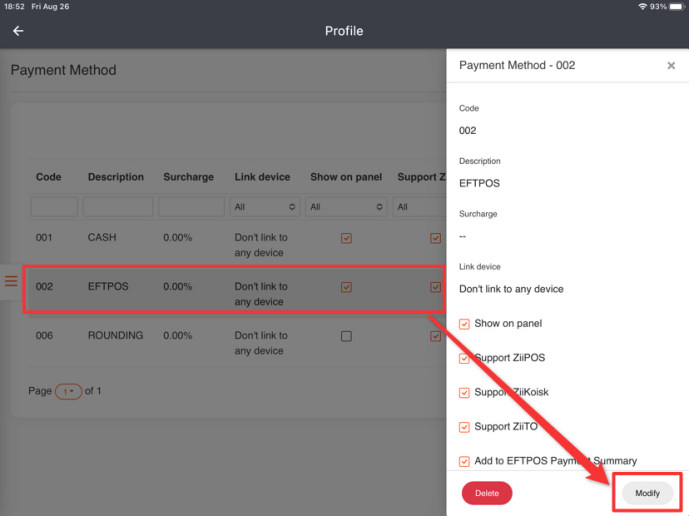
- Click on “EFTPOS” and then click on “Modify”.
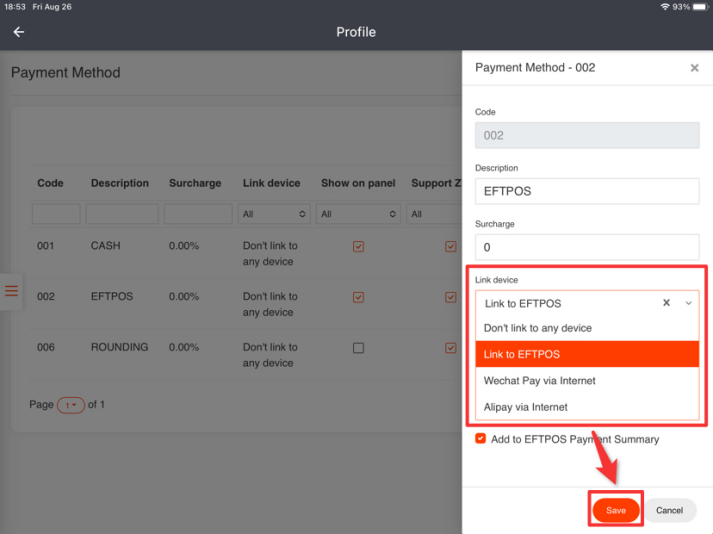
- Select “Link to EFTPOS” and then click on “Save”.
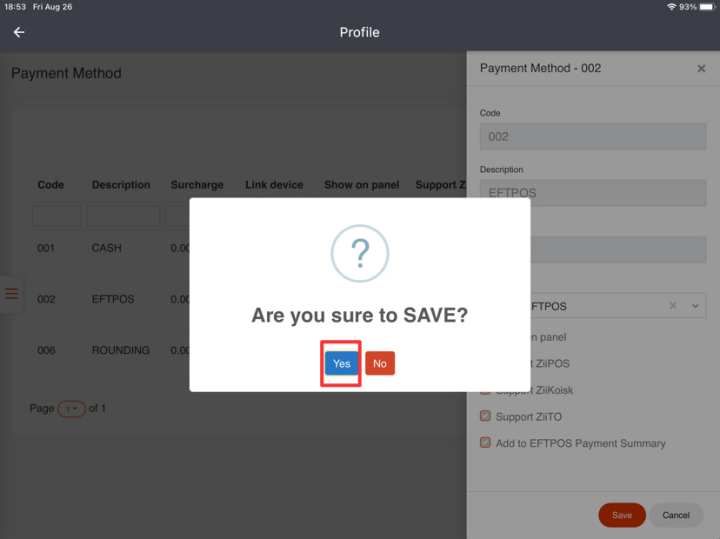
- Click on “Yes” to save the change.
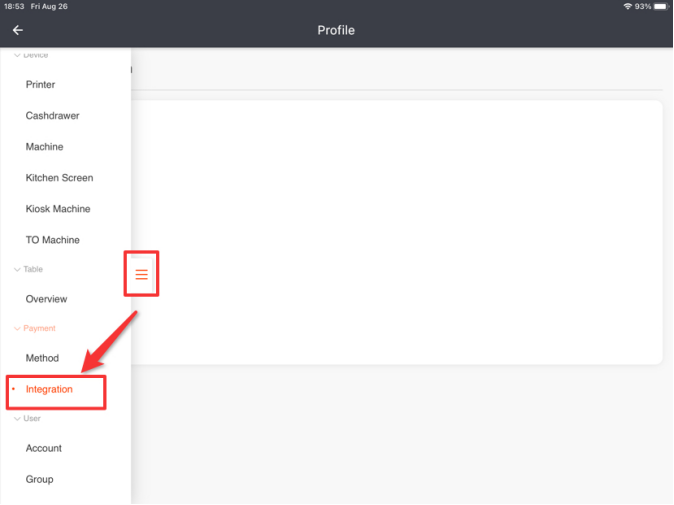
- Click the button on the left and then go to “Integration”.
- Click on “Modify”.

- Tap the blank under “Link EFTPOS” and choose “SCI”.
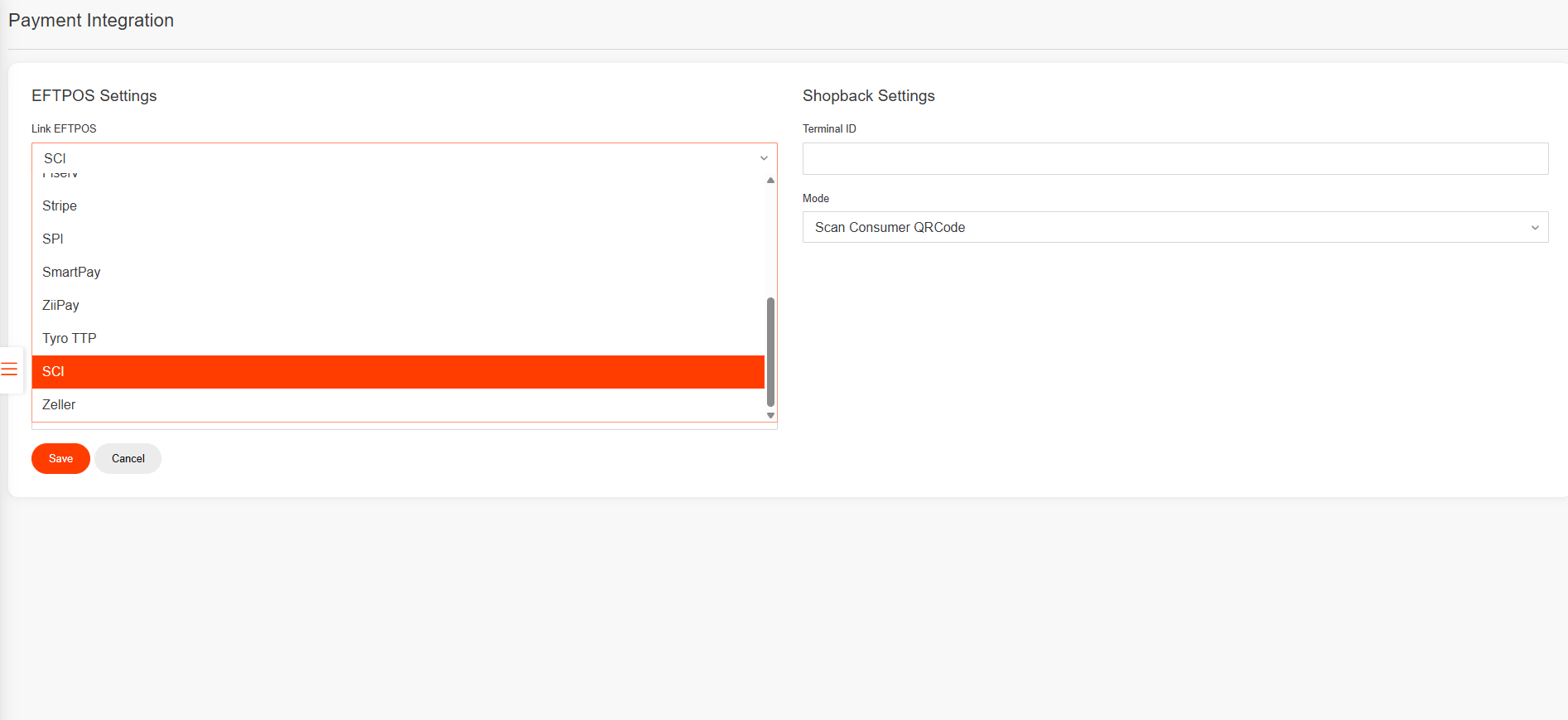
- Tap “Save”.
- Tap “Yes” to save.

- Tap the arrow icon in the top left corner to go back to the home page.
Part II Pair EFTPOS to ZiiPOS
Before you start pairing, please make sure that this EFTPOS terminal and the ZiiPOS device are connecting to the same Wi-Fi. If not, you can follow this guide to check:
How to Check the Network Connection of a MX51/Spice Terminal – Zii Help Center (ziicloud.com)
- Tap the toolbar button in the lower left corner of the ZiiPOS homepage.
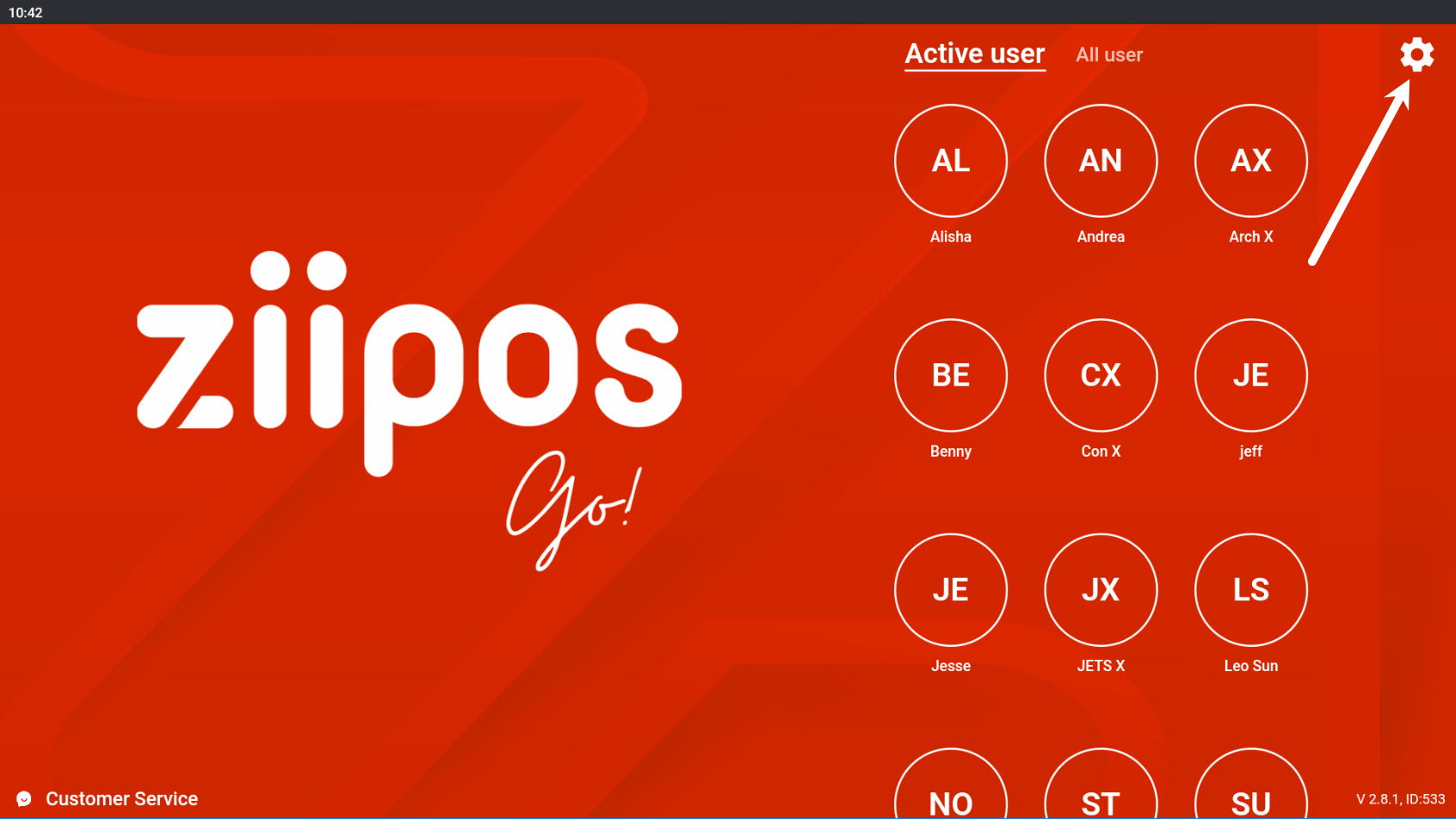
- Tap “EFTPOS”.
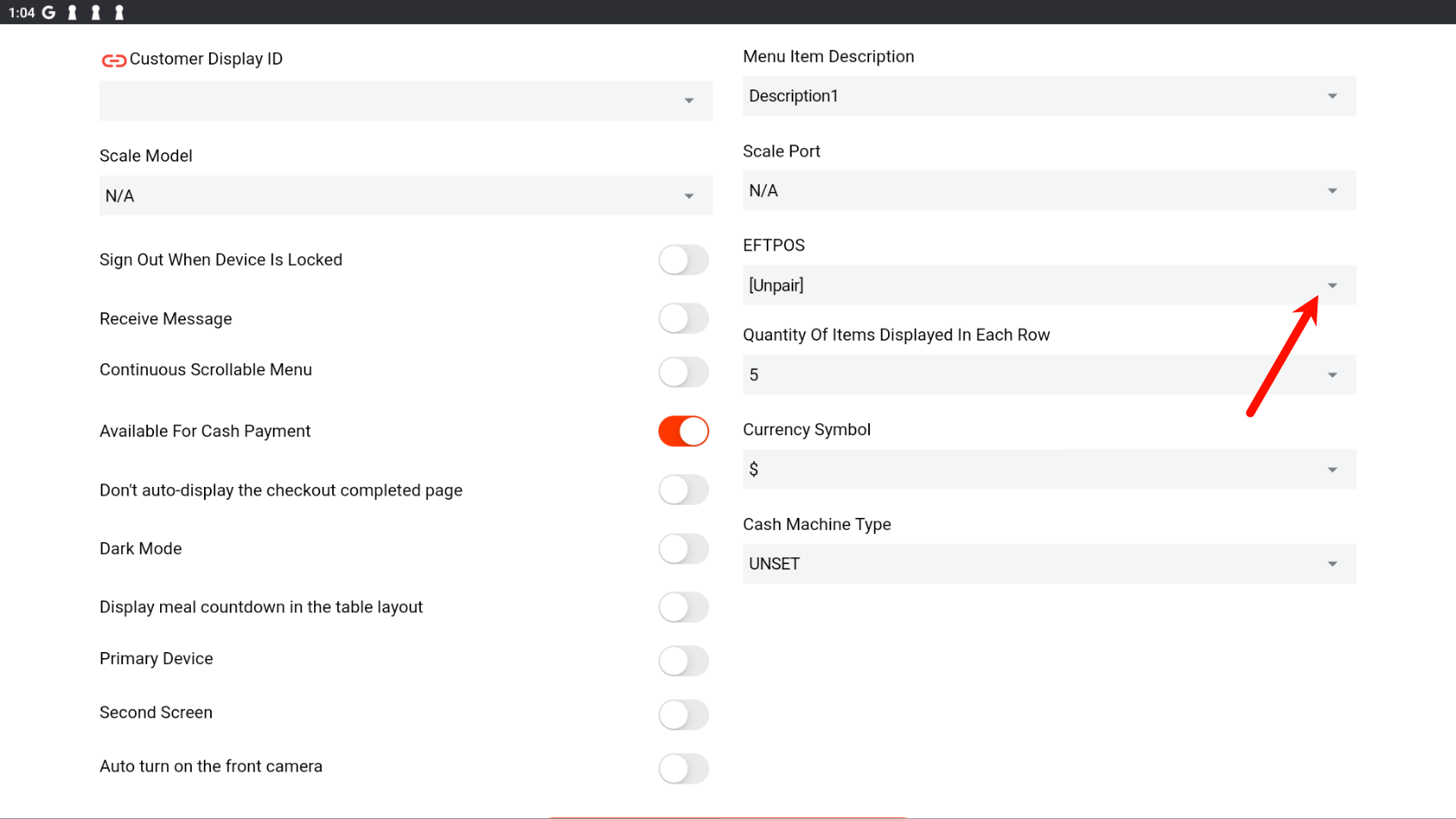
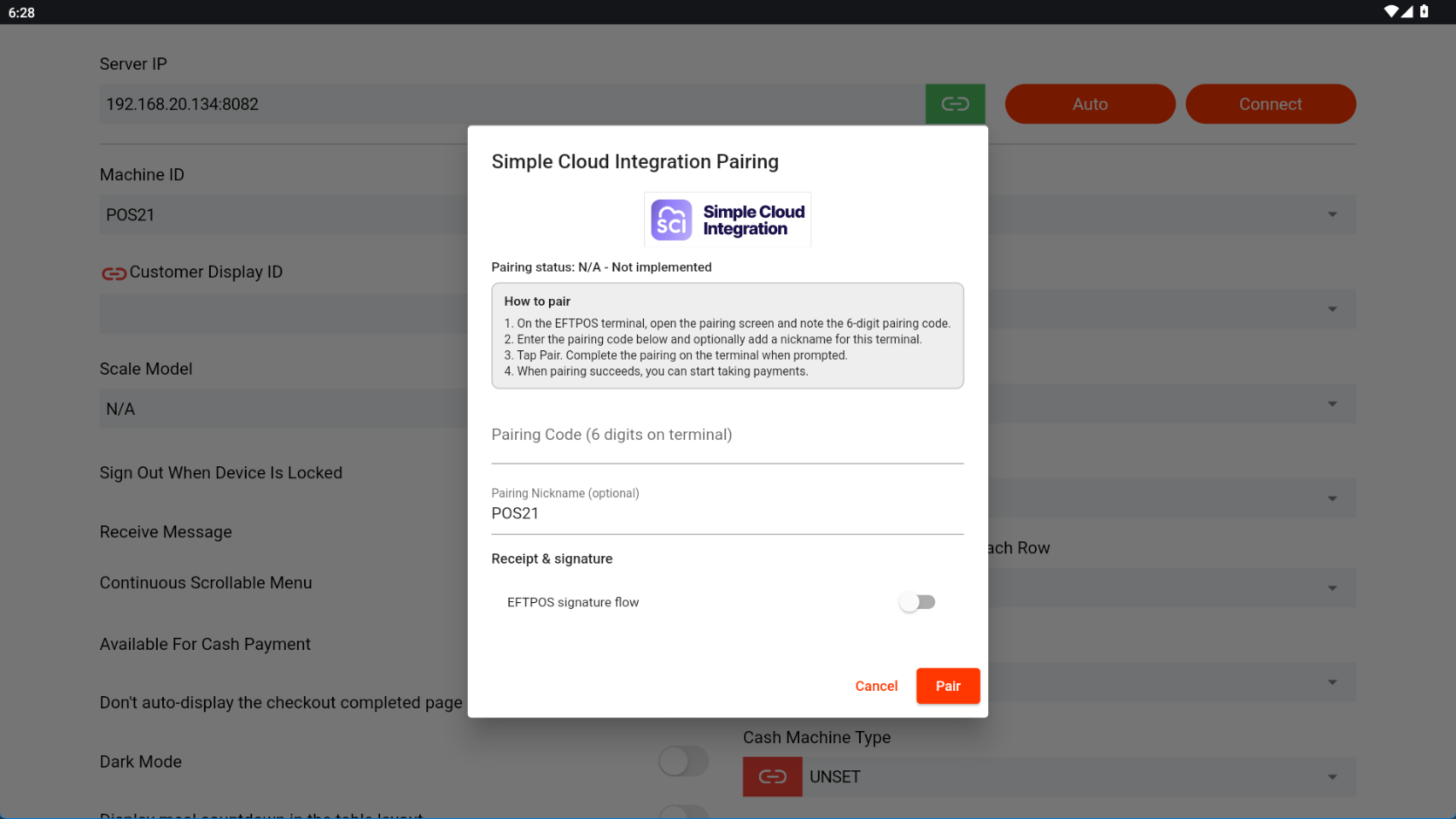
- Now the screen will show enter the pairing code
- Now, Let’s Go to your EFTPOS Terminal, Click Top left

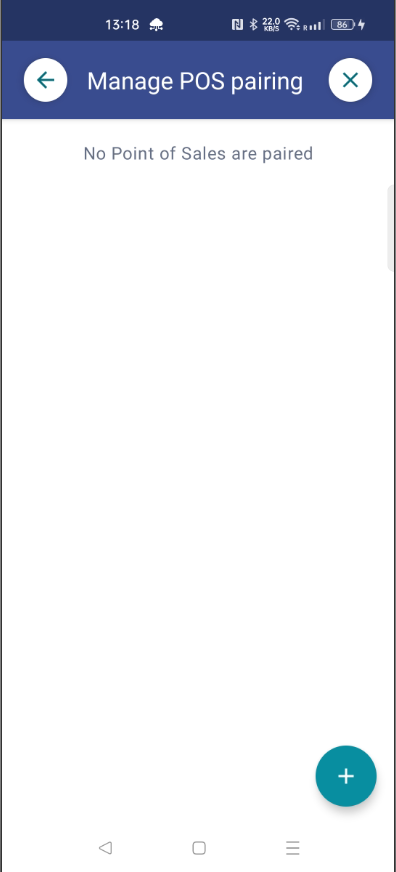
- Tap Manage POS Pairing
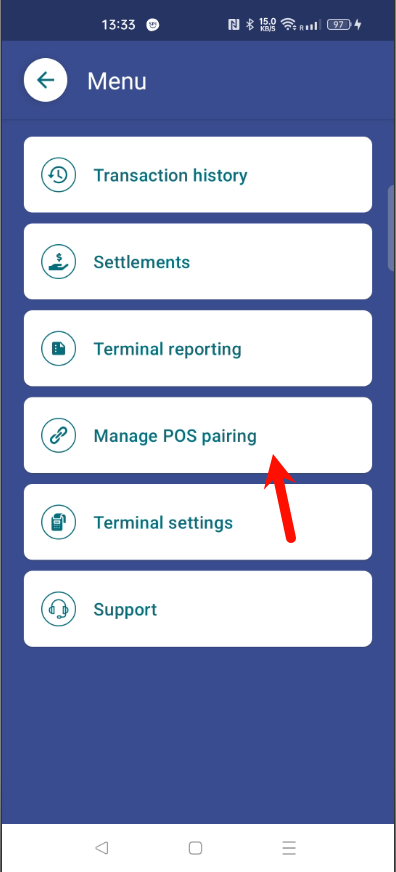
- Press “+” Button
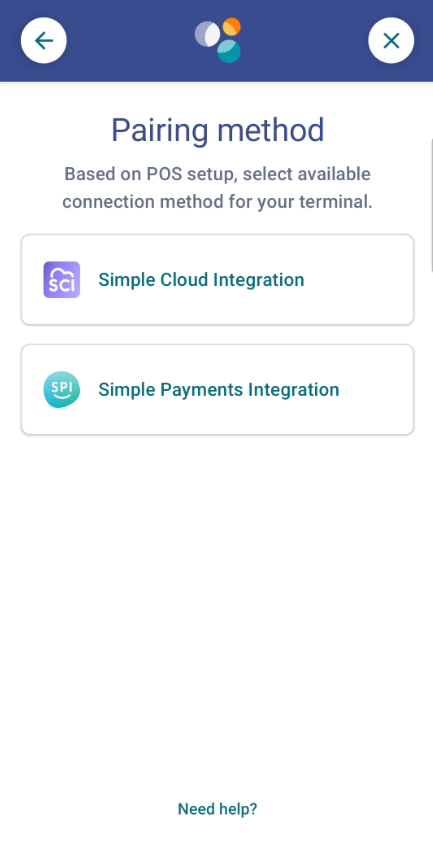
- At the the screen, please select “Simple Cloud Integration“
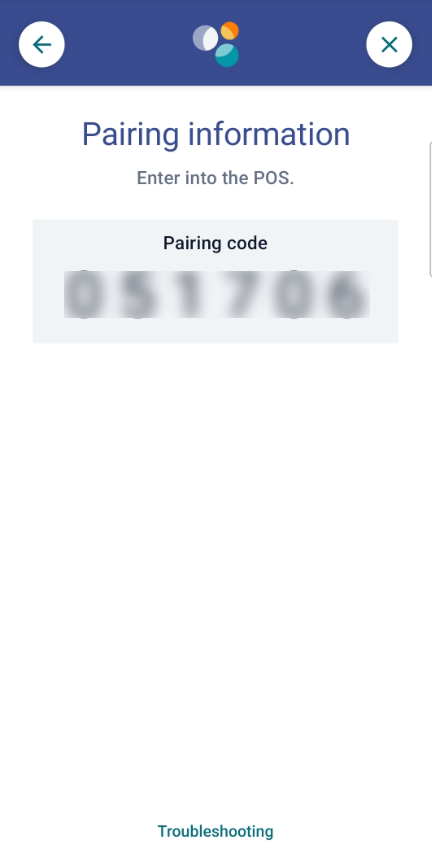
- Please key copy the Paring code to ZiiPOS
- The ZiiPOS will pick the EFTPOS address, then Please press Pair button.
- Press the OK from EFTPOS
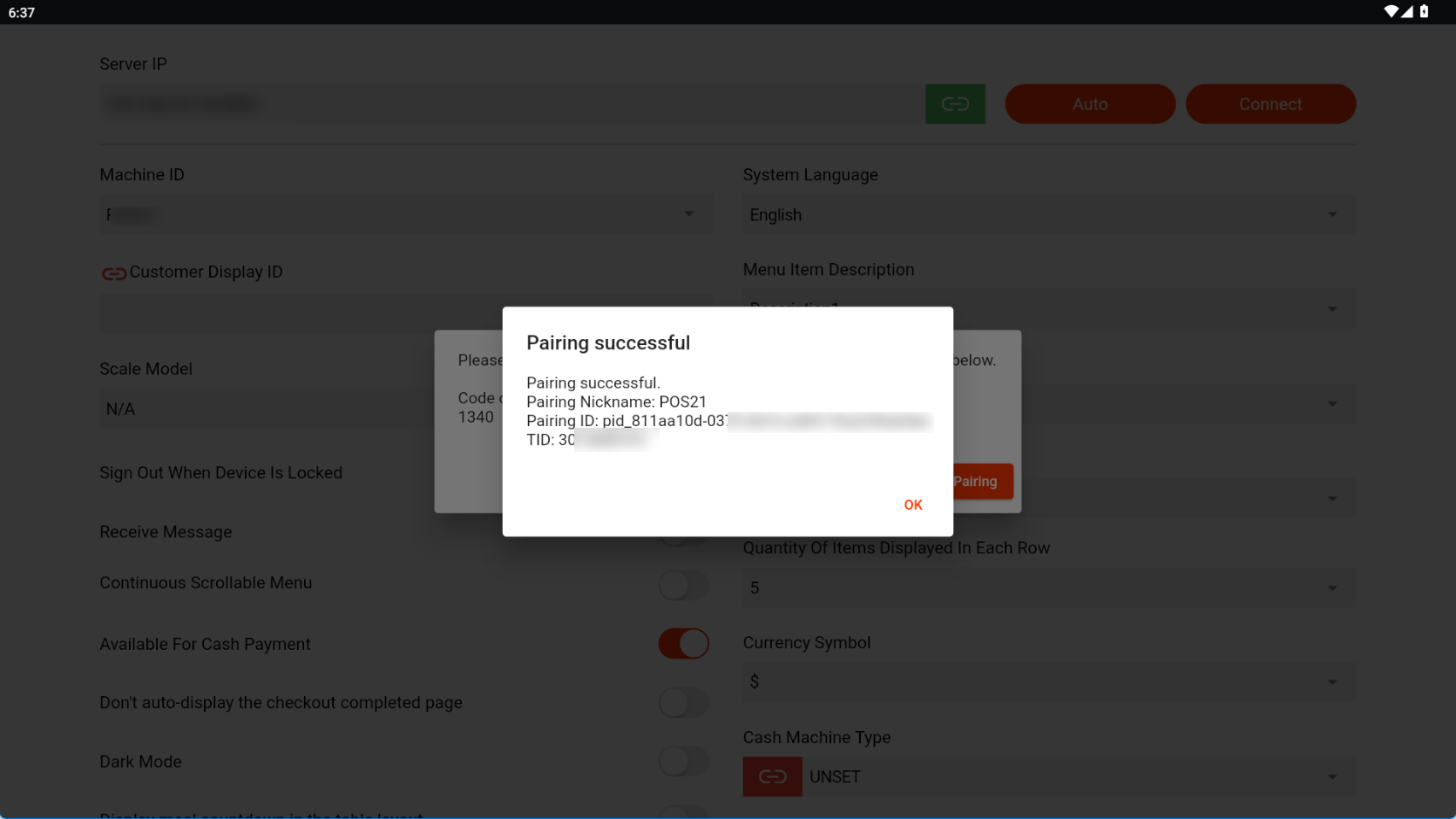
- When it successful, it will show the “Confirm” screen, now press “YES” from the EFTPOS machine, then press confim paring from ZiiPOS
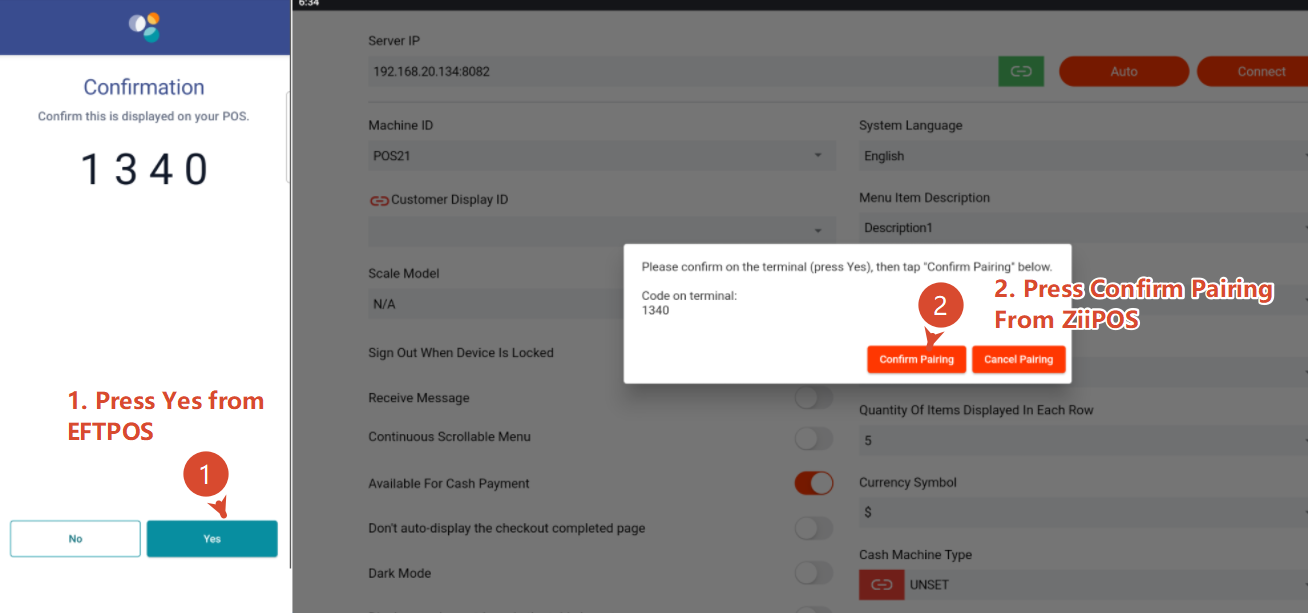
When it paired successfully, it will show the “Success” screen on eftpos and ZiiPOS
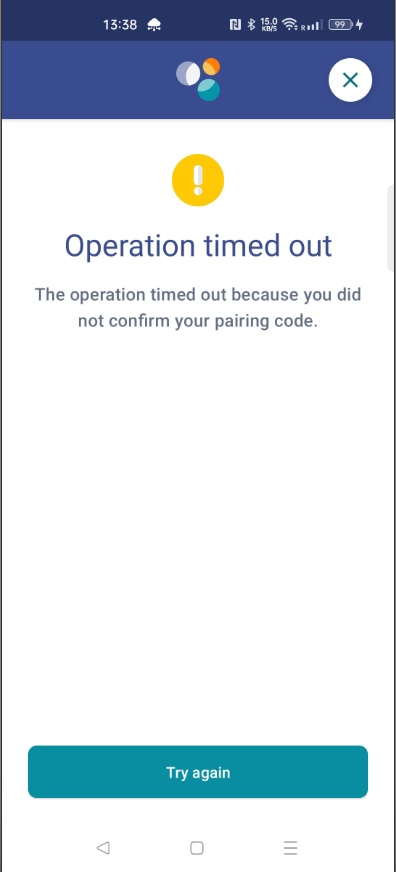
Note 1: if during the pairing process the EFTPOS showing an timed out message, please press “Try again”