
This guide is for ZiiPOS F&B integrate with Uber. Before you start, please make sure that you have uber store manage level permission. Also, after this process the uber menu item control will be take over by ZiiPOS. This feature request “online order” subscription with ZiiPOS, fees may apply.
To process with action it will be 3 major stage:
1. Link Uber with Branch from portal.ziicloud.com
2. Change Uber delivery hours from menu
3. Sync menu to Uber
Stage 1: Link Uber with your branch
- Login to portal.ziicloud.com, scroll down the left hand side bar to the end, click integration
- at the uber east section, click Config button
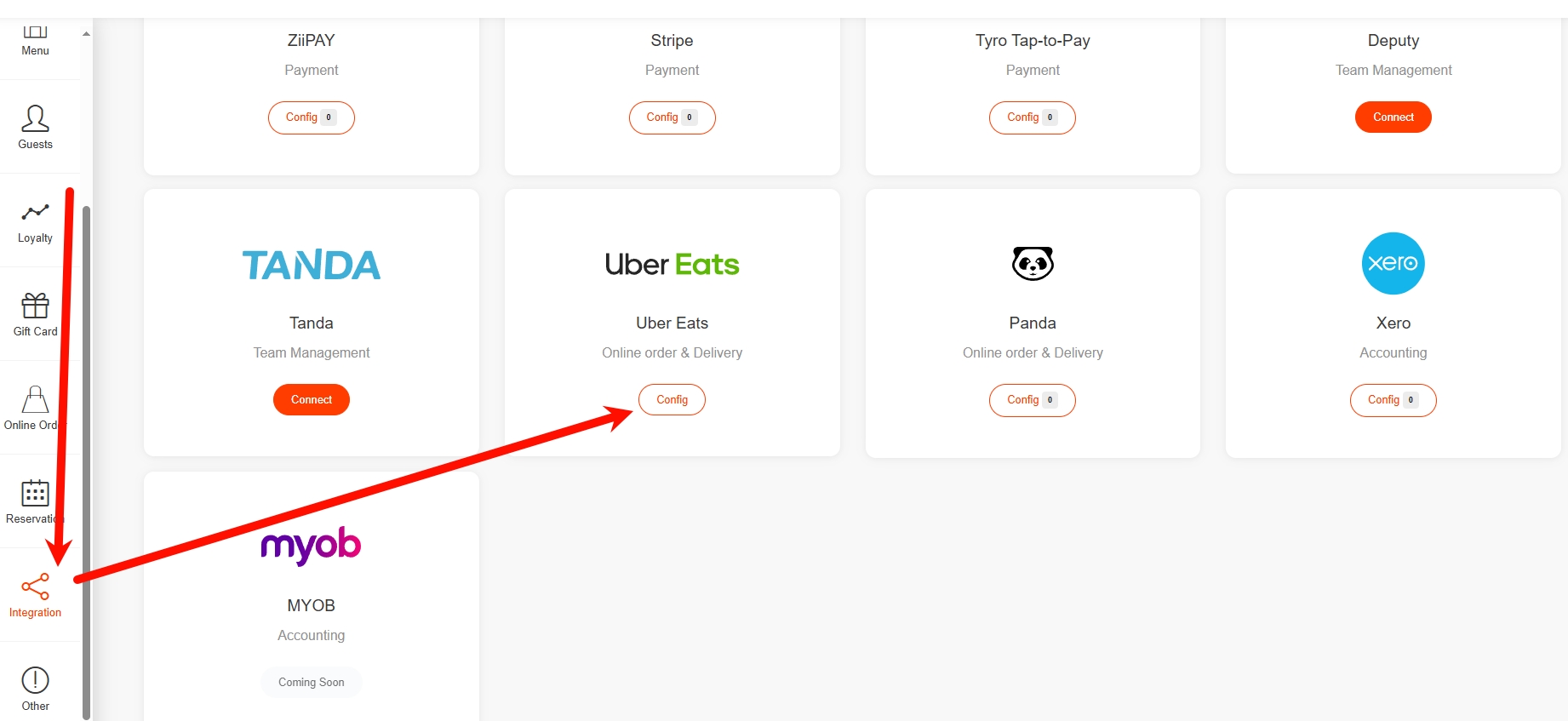
- At the time, the system will jump to uber login page if you never login with uber before
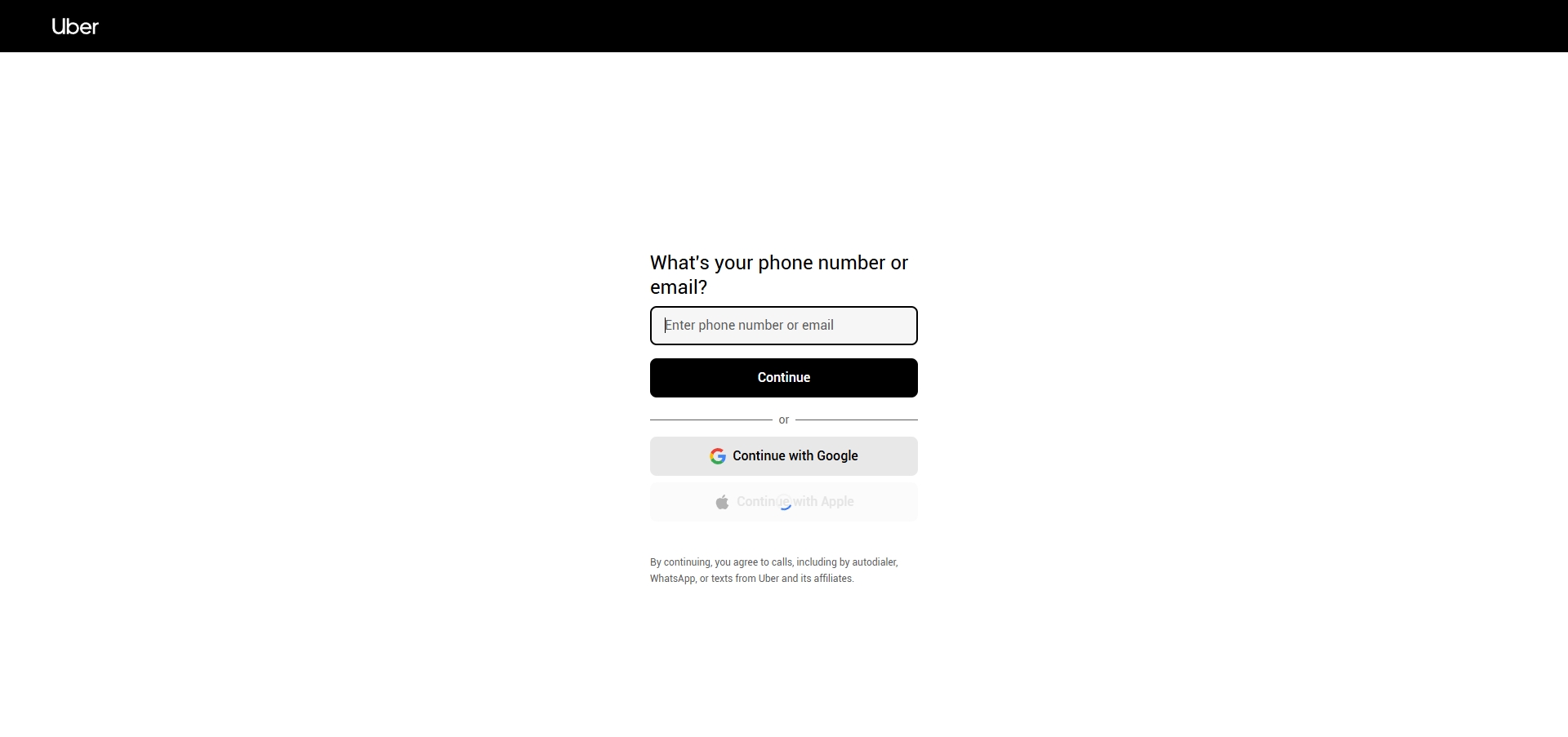
- After login to the Uber account, system will jump back to portal.ziicloud.com. Now you can select your branch with Uber.
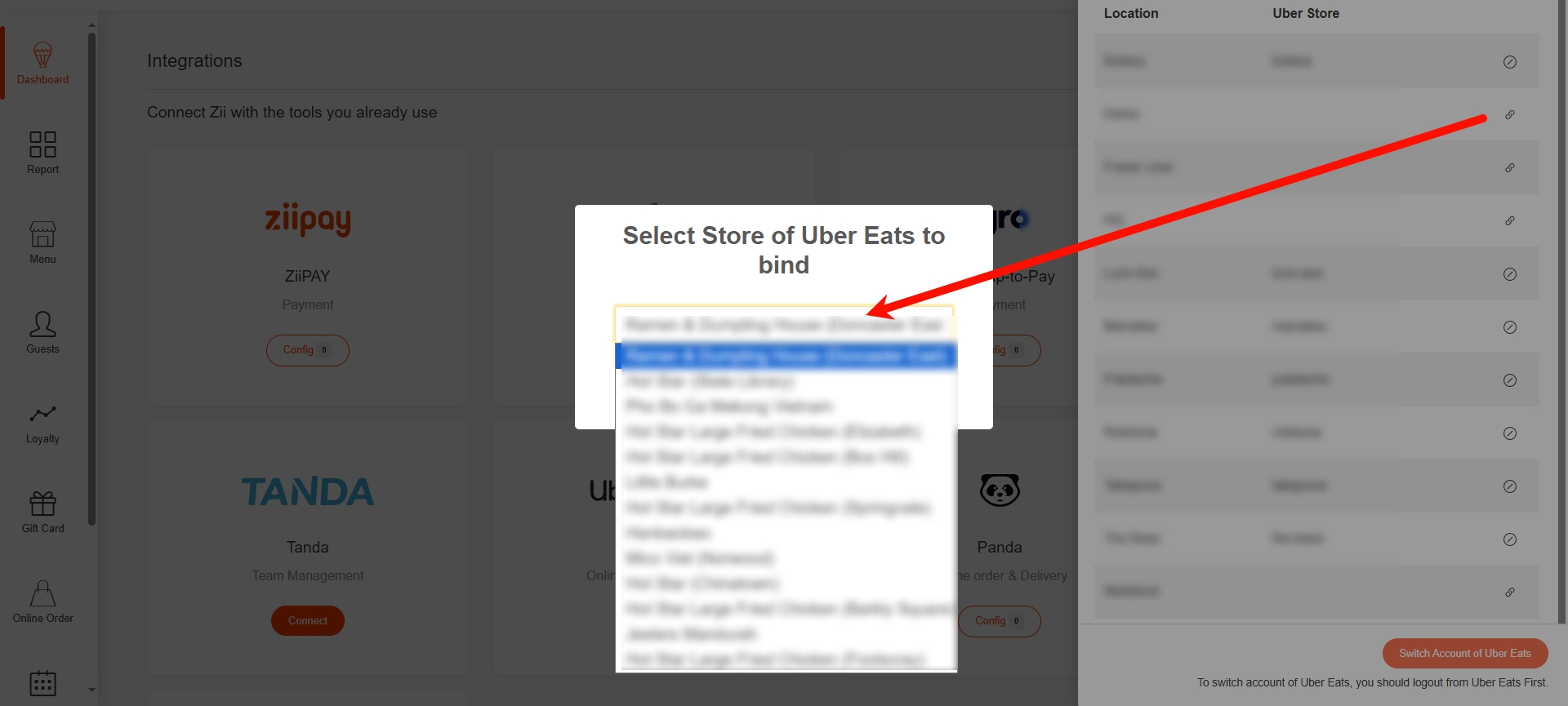
Afer you bind the ZiiPOS branch with Uber Localtion, we can move to stage 2
Stage 2 : Set Store Hours for Uber
a. Go back to portal.ziicloud.com, then select your memu
b. at the menu feature, please find “available time” on the left hand side
then give any name that you need, at the “Name” Section, and provide time.
Note the start time and end time will be your store time.
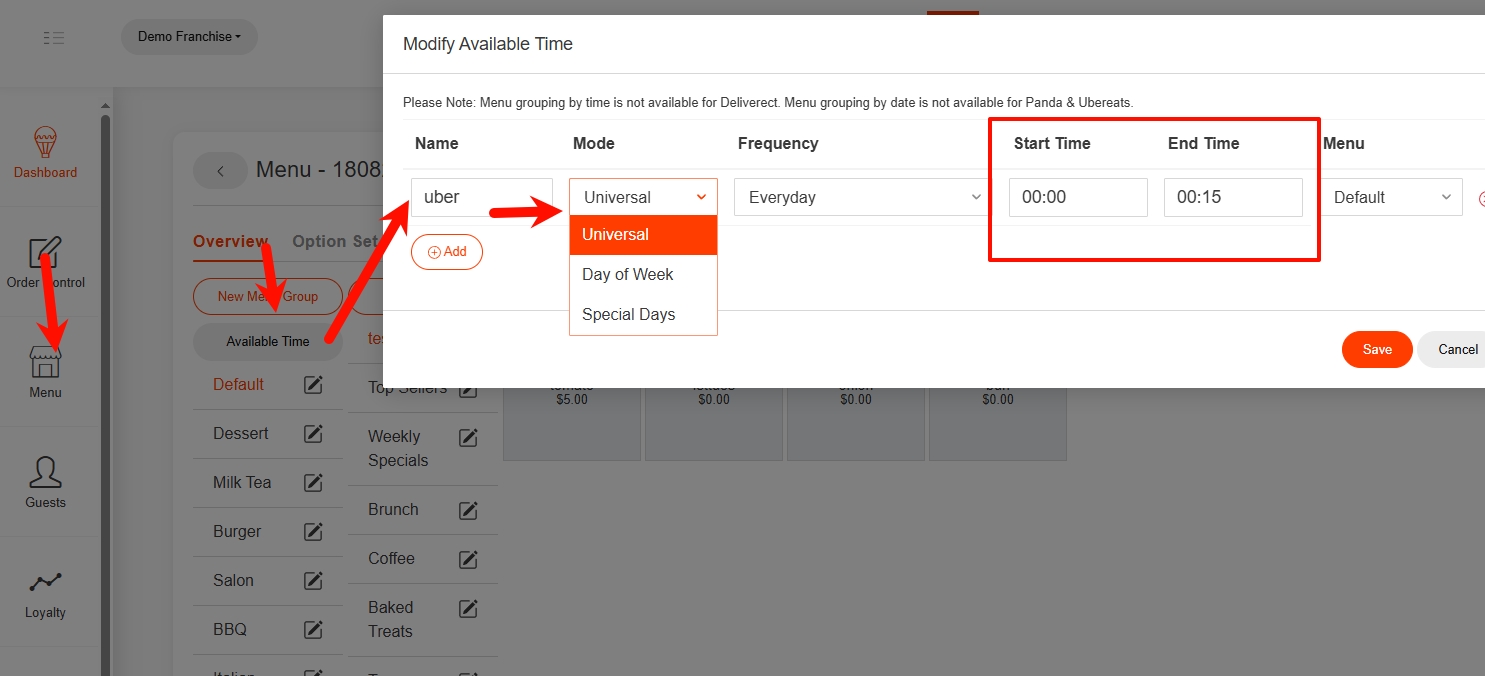
c. after your chenged the store time, please press release button. Once the new menu available to the store we could move the next stage
3. Sync Menu to Uber
I. Go to portal.ziicloud.com, find online order section on the left hand side
II. click General button
III. Go to edit button, and select the menu group that your with to sync to Uber
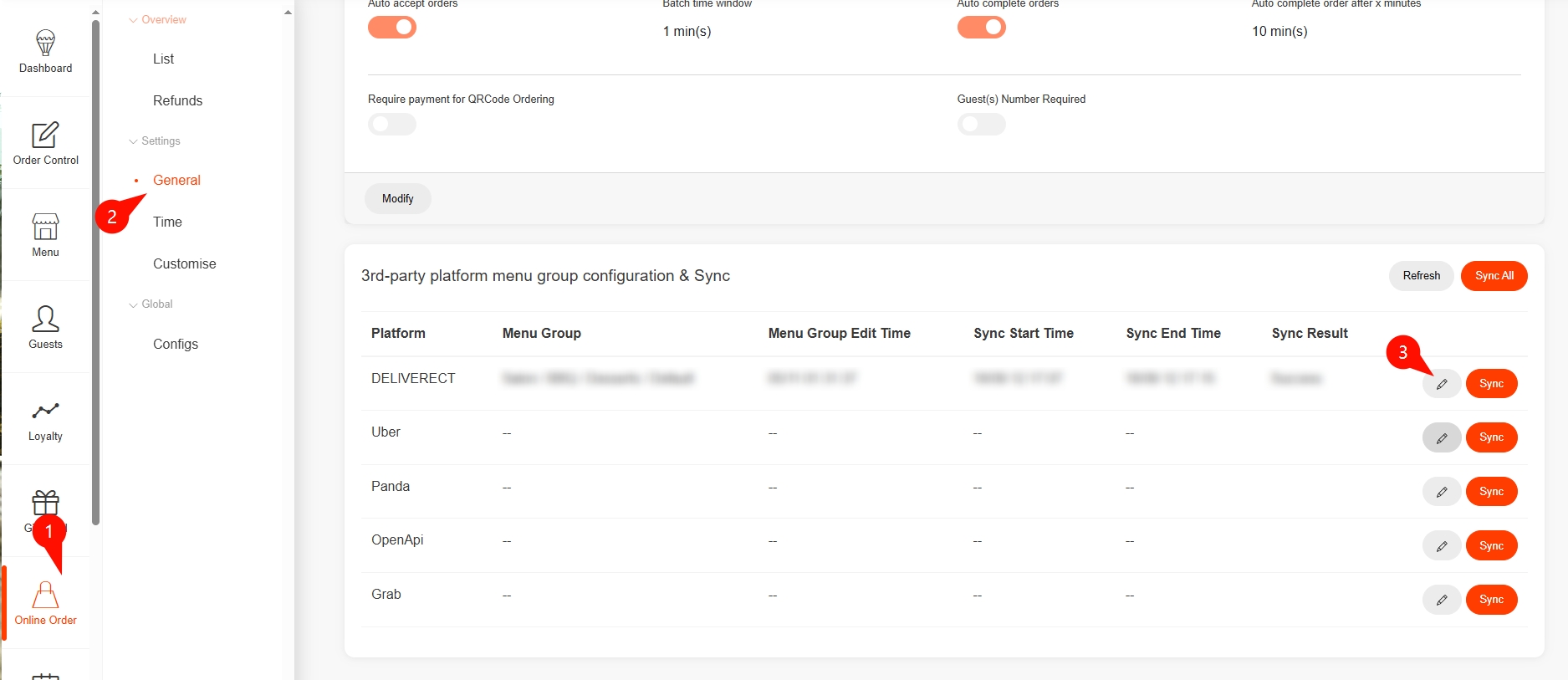
IV. after you select and save menu group, please press sync, when the sync result show as “Success”, you are good to go
