
You may go to portal to edit your menu.
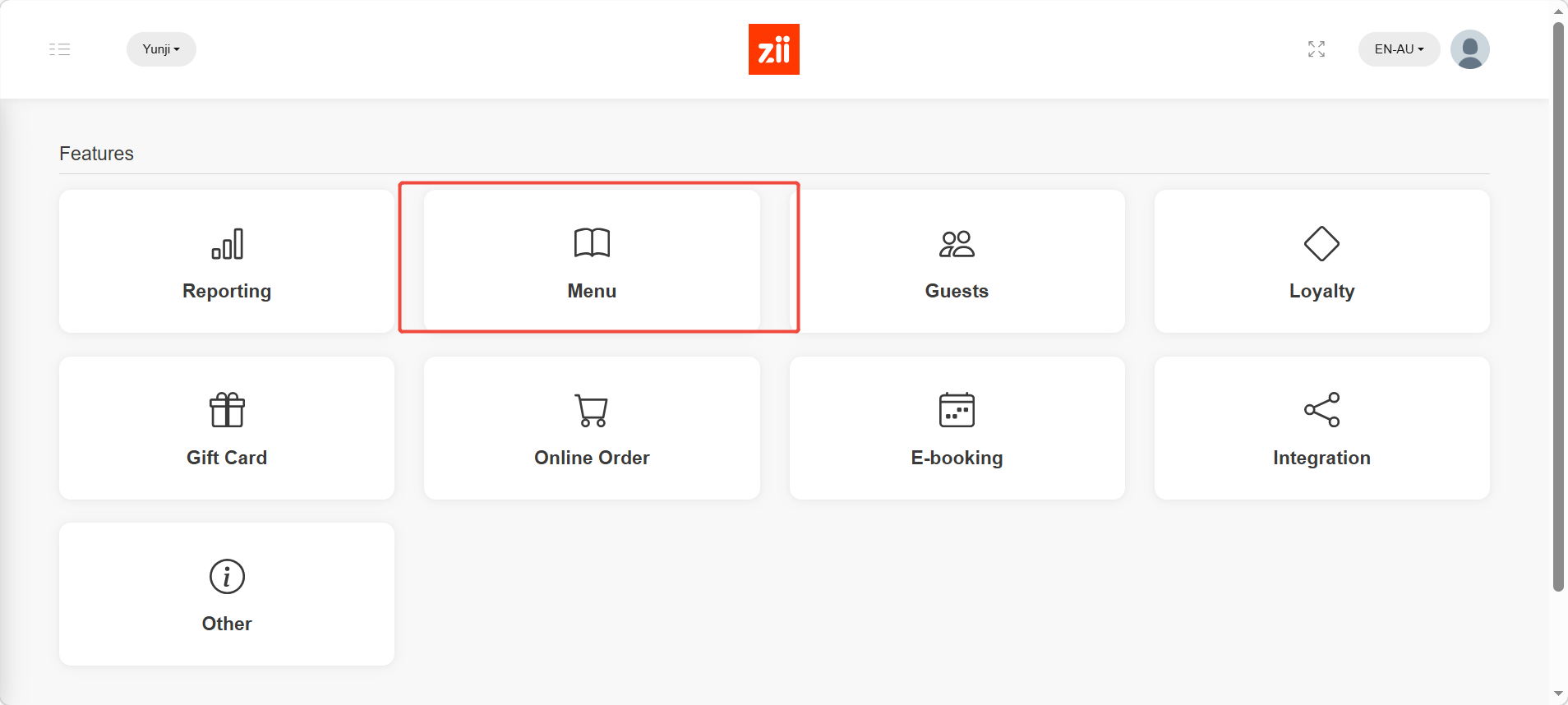
Click “Menu”.
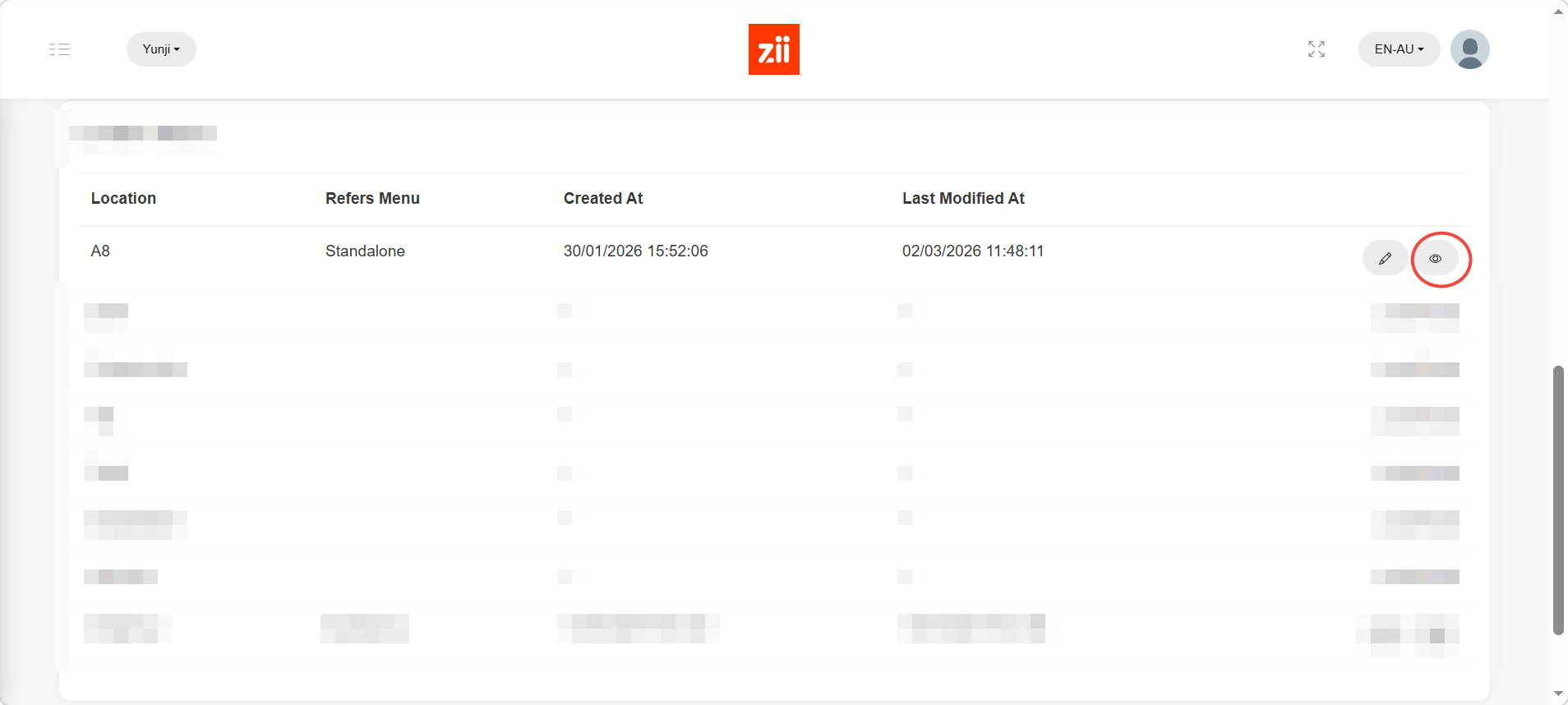
Click eye icon to edit menu.
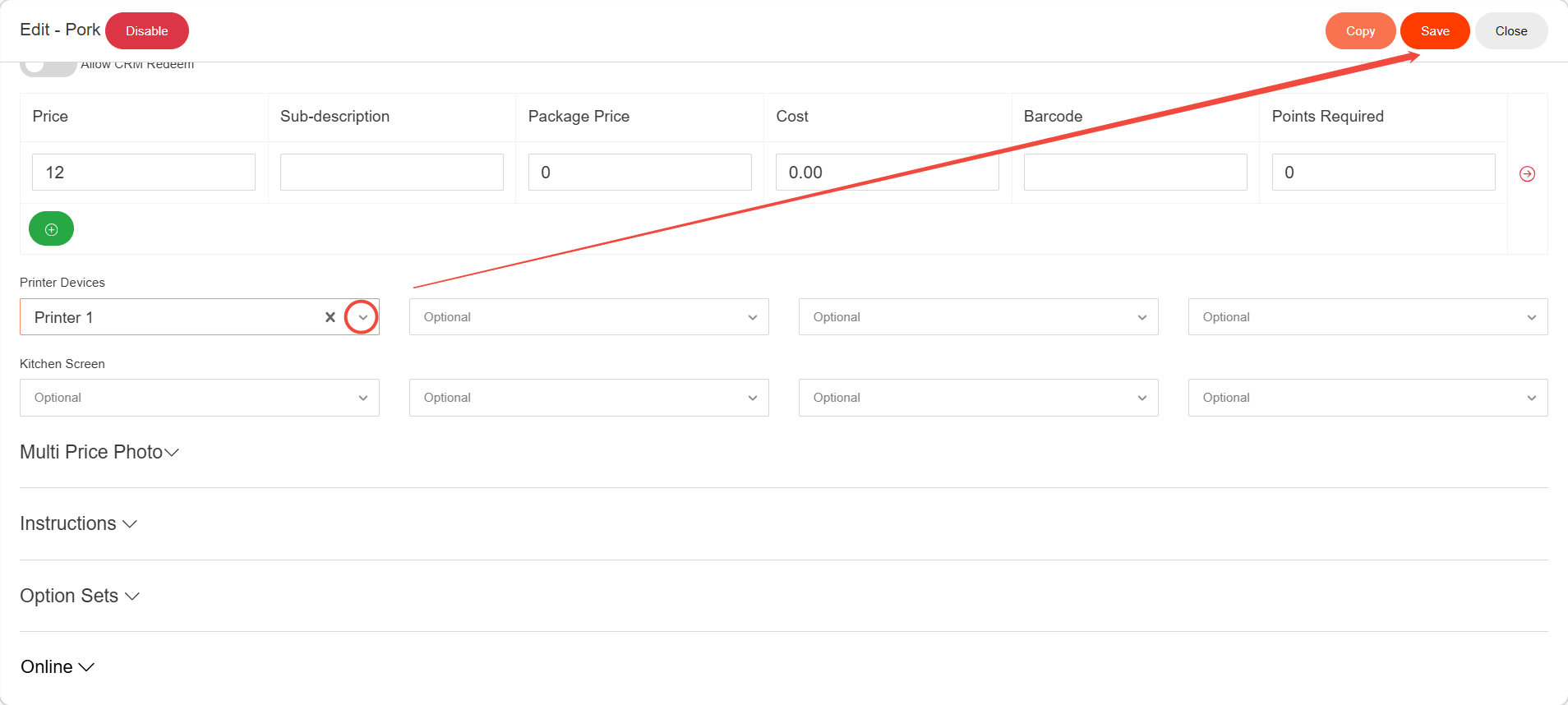
Click the item that you would like to assign printers to.
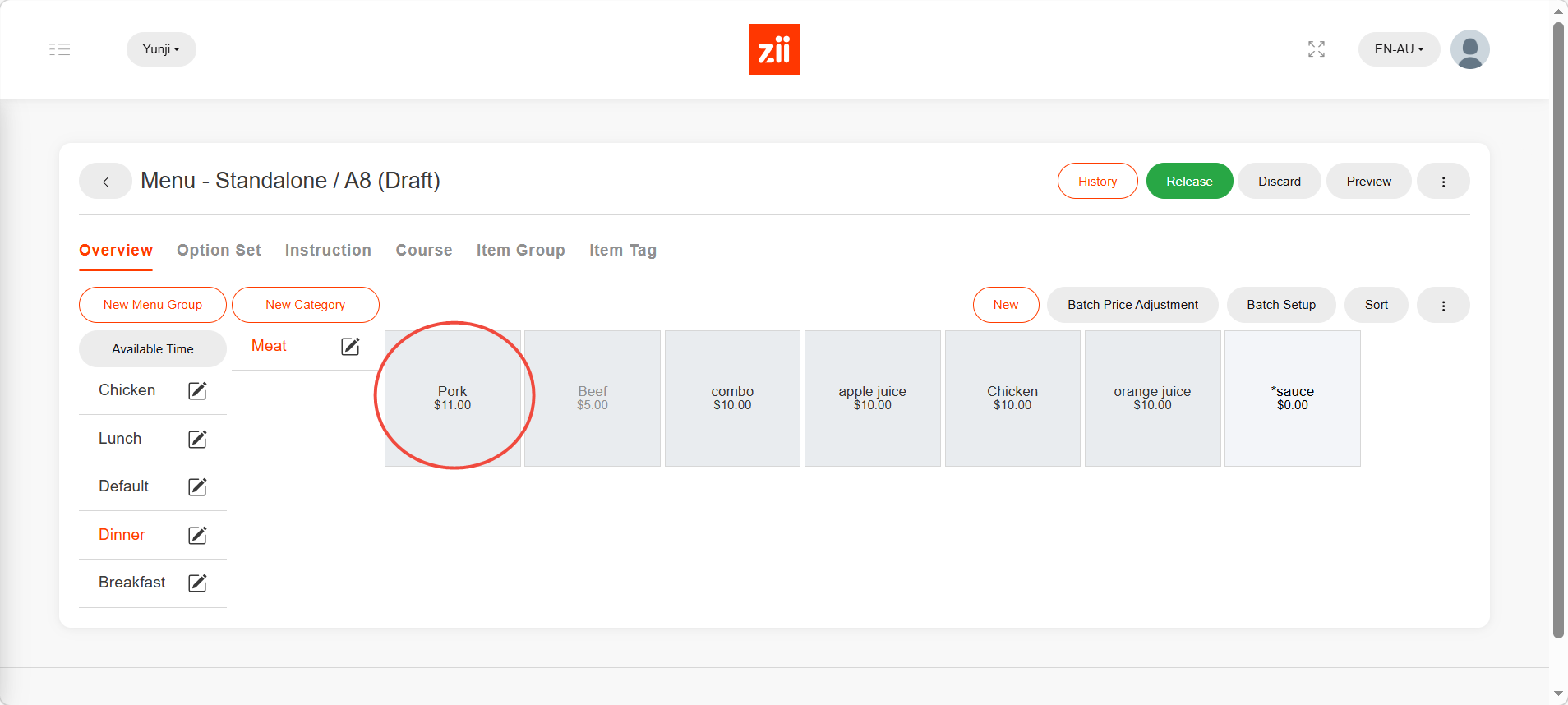
Up to four printers can be assign to an item.
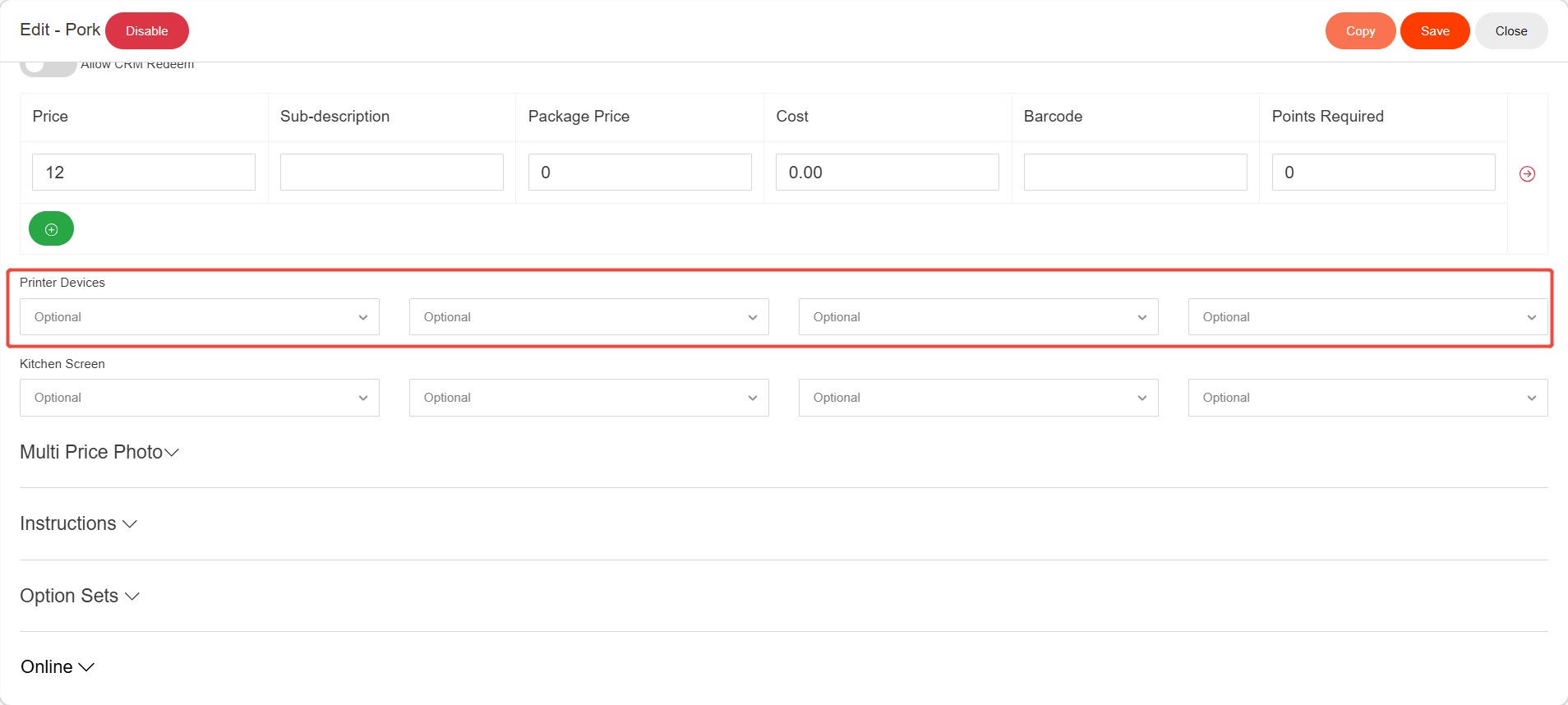
Click the downward arrow in the printer selection blank to select a printer, then click “Save”.
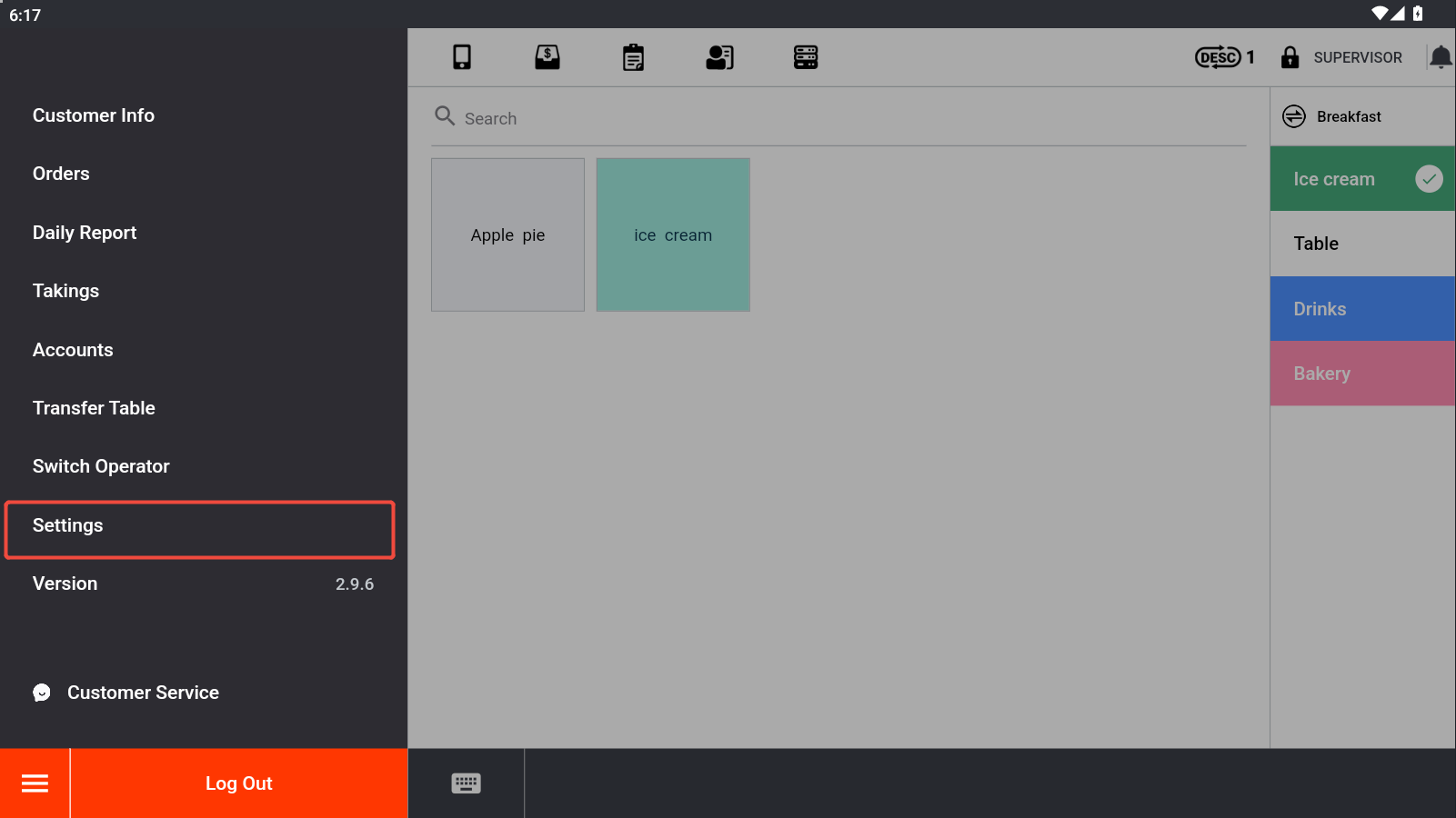
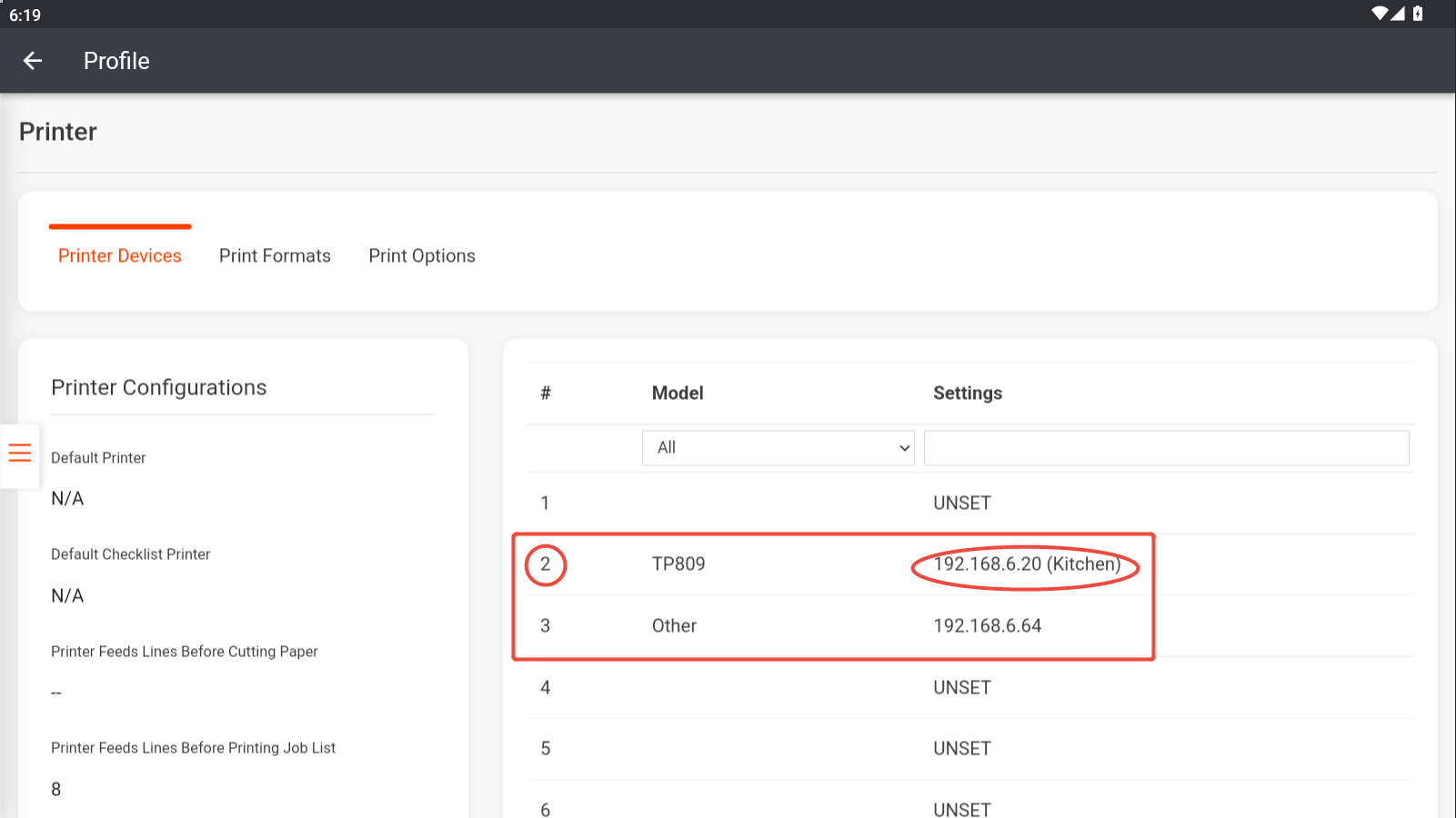
- To match a physical printer with its code (in this case, printer 1,2,3,…), you may go to ZiiPOS->Settings.
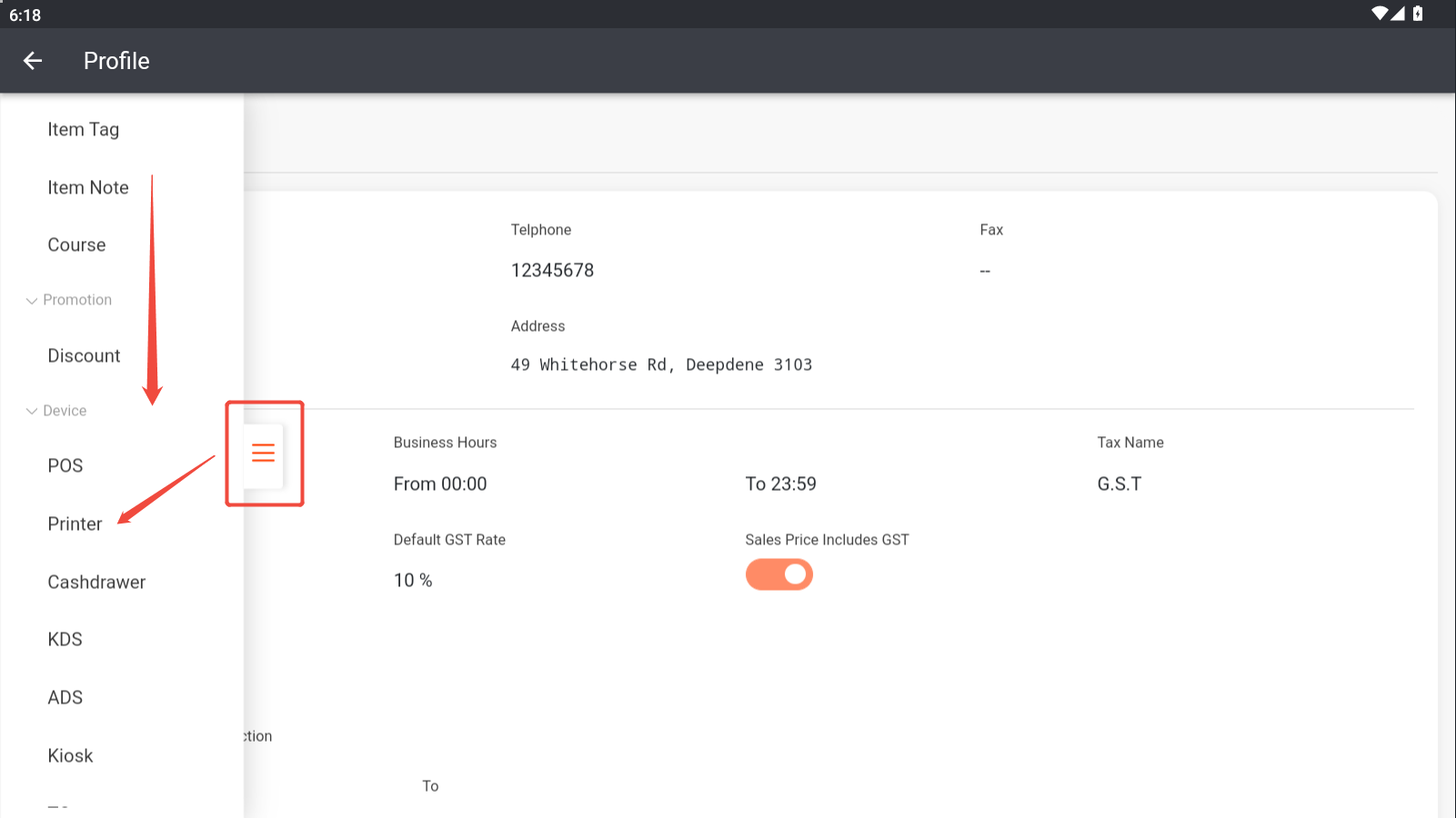
- Click the button on the middle left edge and find “Printer” in the sidebar.
- Then you may check which printer is which here.
Don’t forget to release the menu after all editings are done.
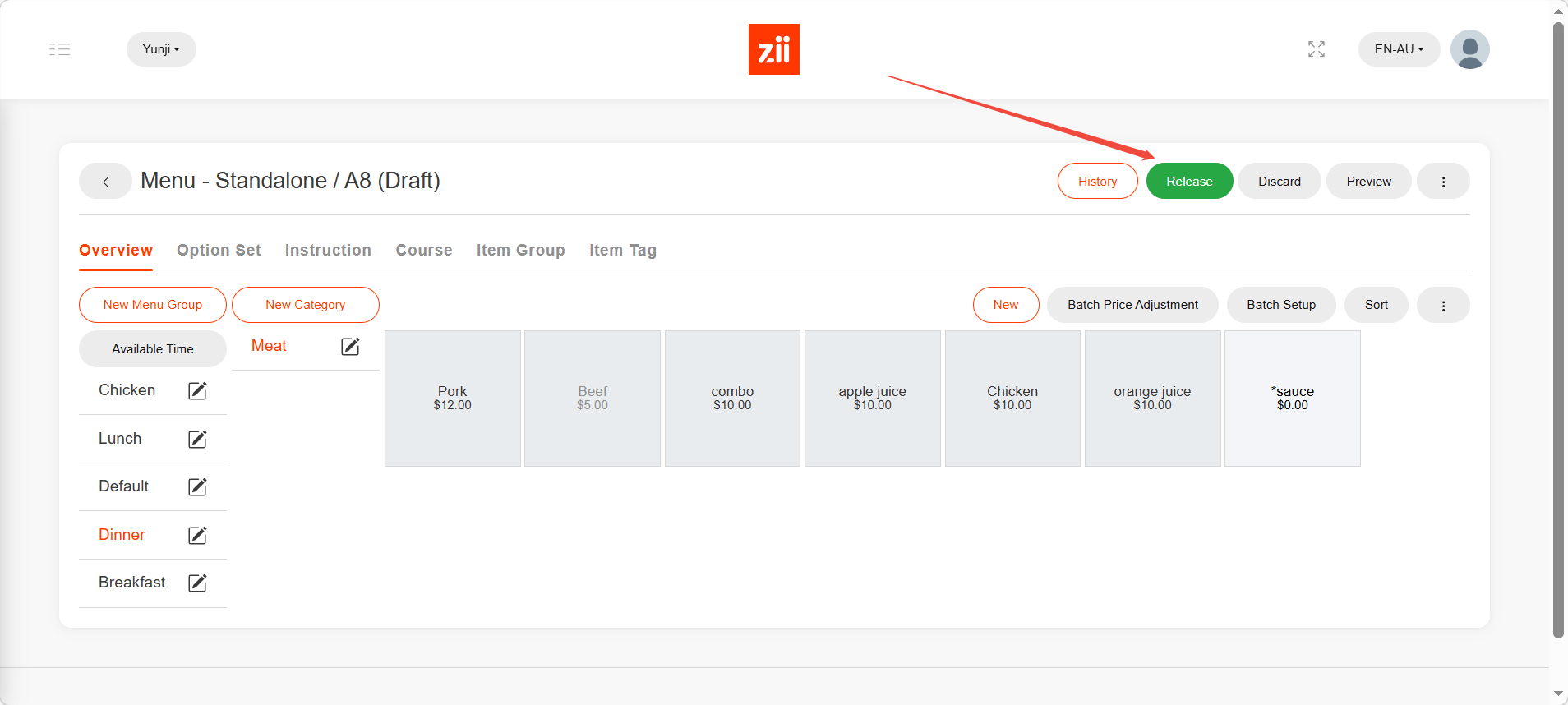
Then after about 5mins, changes to your menu will be uploaded to ZiiPOS.
