
This guide explains how to integrate ZiiPOS F&B POS system with the HungryPanda delivery platform, allowing orders from HungryPanda to flow directly into ZiiPOS.
Before starting, please ensure:
You have administrator access to the ZiiPOS portal
Your account has an active subscription for:
- Zii Order Anywhere
- Third-party delivery integration (Uber Eats / HungryPanda)
There are 3 major stages for the integration:
1. Link HungryPanda with Zii Branch from portal.ziicloud.com
2. Use Price List to adjust the menu pricing displayed on HungryPanda Platform
3. Sync menu to HungryPanda
4. Contact with HungryPanda and express that you wish to connect with ZiiPOS
Stage 1: Link Hungry Panda with your branch
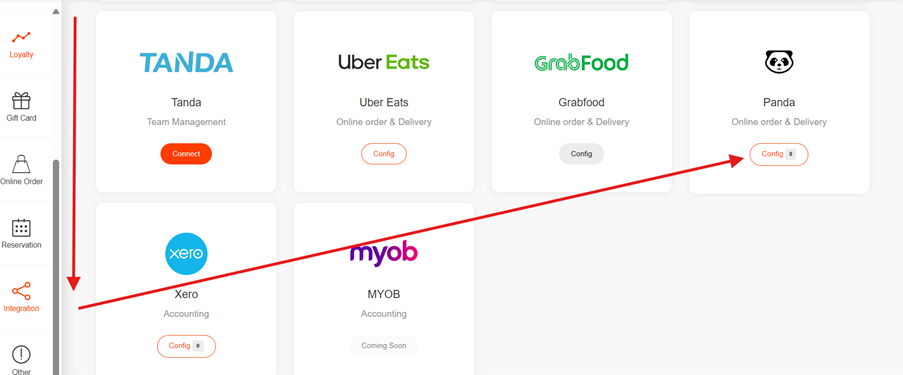
1. Login to portal.ziicloud.com, scroll down the left side bar to the end, and click Integration
2. At the Panda section, click Config button
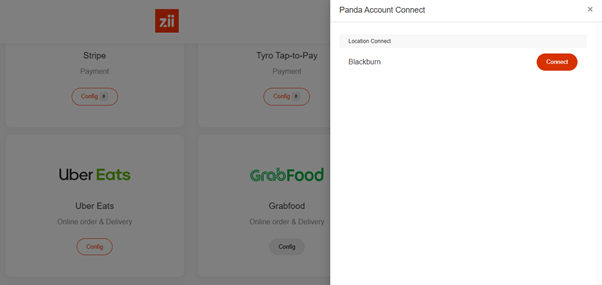
3. Select the location and click the Connect button for the location you want to connect to Panda
4. Enter your Panda Shop ID
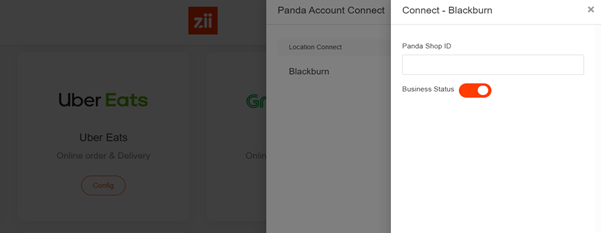
After entering your Panda Shop ID, click Save button. If it is successful, it will display a green tick, then we can move to Stage 2.
Stage 2: Use Price List to adjust the menu pricing displayed on HungryPanda Platform (optional)
In this stage, you will use the Price List function to increase item prices.
Please refer to the relevant guide below based on your setup:
- ZiiPOS F&B – How to Use Price List to Set Up Cash Discount to Items
https://support.ziicloud.com/knowledge-base/ziipos-fb-how-to-use-price-list-to-setup-cash-discount-to-items/ - ZiiPOS F&B – How to Use Price List to Set Up Discount Rate
https://support.ziicloud.com/knowledge-base/ziipos-fb-how-to-use-price-list-to-setup-discount-rate/
Important Note:
When increasing prices, enter a negative value in the Value field.
For example, to increase prices by 20%, enter -20% as the value
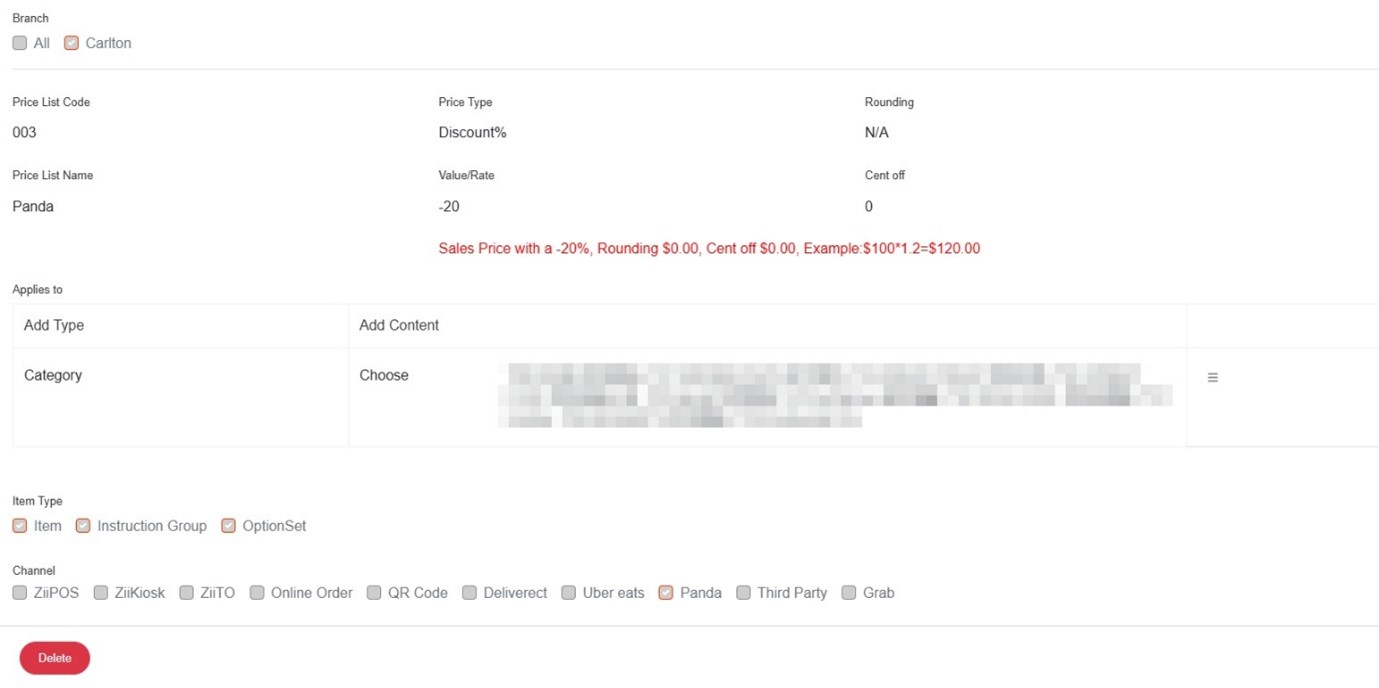
After completing Price List setup, remember to click the Save button on the top-right corner, then click Release.
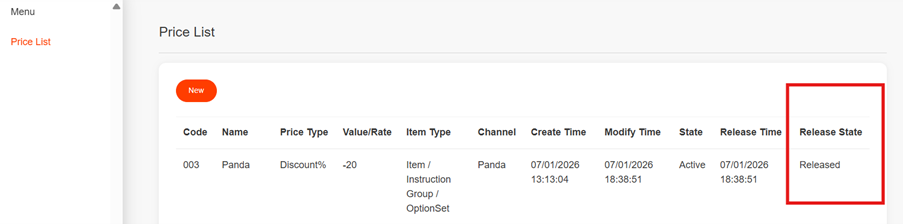
If you’ve followed all the steps correctly, your Price List page will look similar to this. We can now move on to Stage 3.
3. Sync Menu to Hungry Panda
1. On your Zii Portal (portal.ziicloud.com), go to Online Order section on the left-hand side.
2. Go to General.
3. Click on pencil icon to select the menu group that you wish to sync to Panda
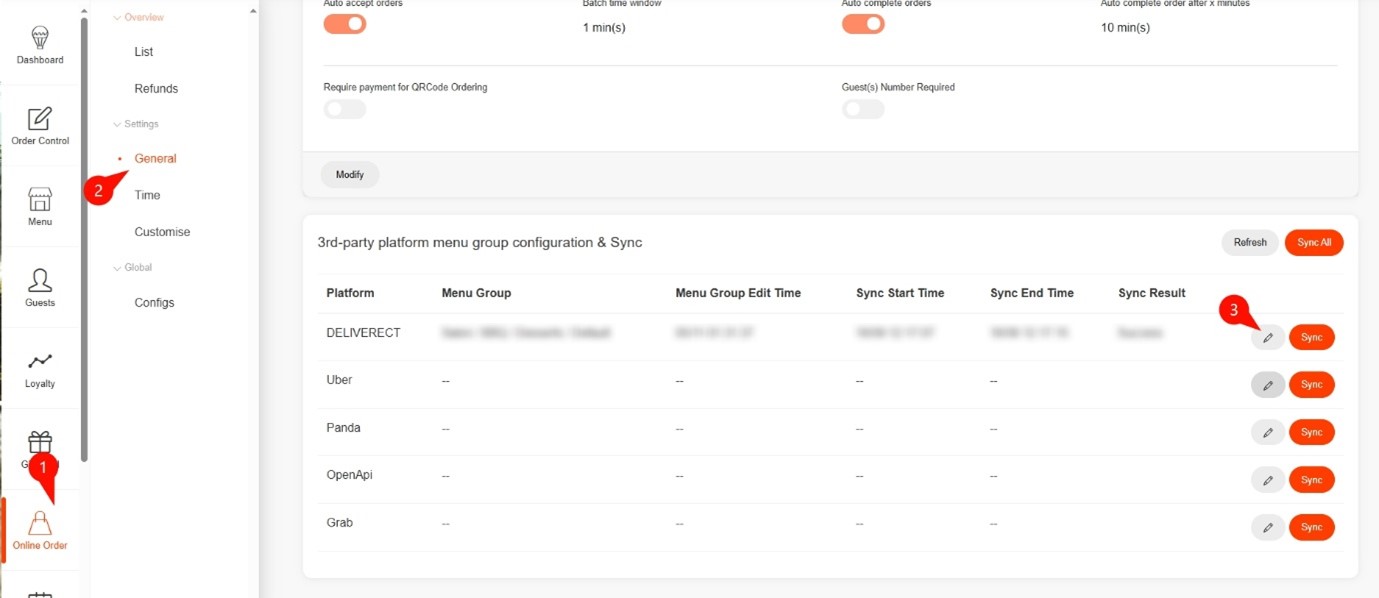
4. After you’ve selected the menu group and saved your selection, press Sync.
5. Once the syncing process is complete, Sync Result will display “Success”, and you are good to go.
Stage 4: Contact with HungryPanda Platform for go live
When we complated the list on top, please contact with HungryPanda, and please express what you wish to integrated with ZiiPOS, then HungryPanda customer team will complate the last stage and link your account with ZiiPOS. Once this process completed by HungryPanda, you will go live.
NOTE – Known Limitations with the Hungry Panda Integration
❌ Nested Option Sets: Only one level of nesting is supported on HungryPanda. Option sets cannot be nested within other option sets.
❌ Opening Hours: Owners need to contact Panda directly to make any changes to the store opening hours.
❌ Upselling: Any items set for upselling will not be supported by Panda
